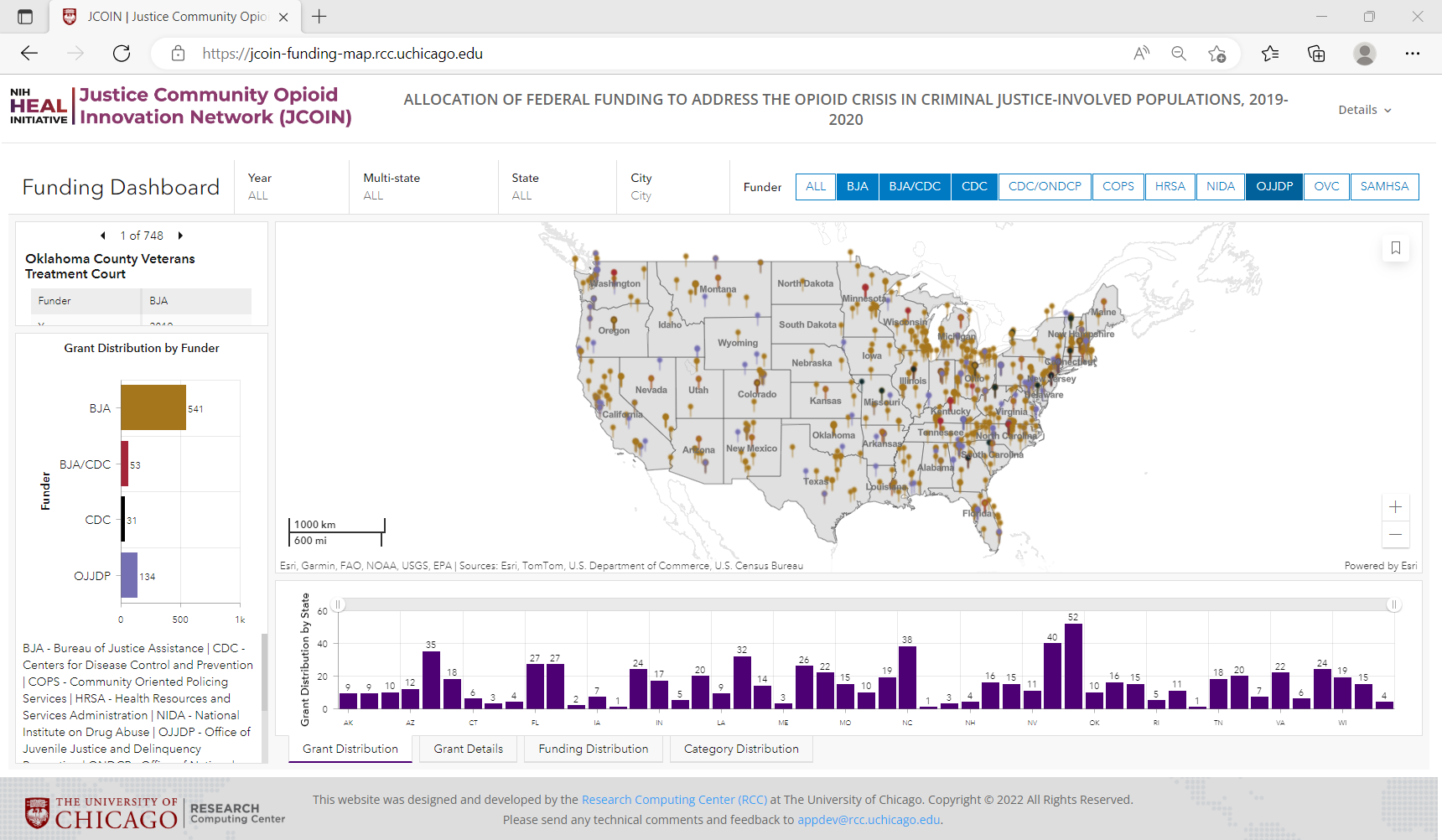
Query Filters
The dashboard provides the user the opportunity to filter their search results by Year, State, City, Funder, or any combination thereof.
Filter Menu
- A - Year
- B - Multi-state Grants
- C - State
- D - City
- E - Funder
Filtering using dropdown menus
Action
-
Select the desired Year from the drop down.
- 2019 or 2020 or both may be selected.
-
For Multi-state Grants Yes or No options are available.
-
Select the desired State from the drop down.
-
All States or a single State may be selected.
-
Only States with Grants will be available.
-
-
Select the desired City from the drop down.
-
Multiple Cities may be selected.
-
Only Cities with Grants will be available.
-
Results
-
Funder
- The Grant List (J in the Dashboard Diagram) will only display those that have Funded Grants in the selected State and Cities, if selected.
-
Map
-
Pinpoints that are color-coded to the applicable Funder will display in the selected State.
-
Click on the pinpoint and 6 lines of Grant related information will display in a pop-up.
-
-
Grant List
-
The number of associated Grants will display with the option to move forward or in reverse to view the list.
- For each Grant, the Title, Funder, Year, Funding, Grant number, Funding, Institution receiving funding, and Multi-state indicator will be viewable.
-
-
Grant Distribution by Funder Chart
-
The Funder acronym and the number of Grants will display.
-
The Funders are color-coded to match the pinpoint colors on the map.
-
-
Grant Distribution (by State), Grant Details, Funding Distribution (by State), and Category Distribution
-
Grant Distribution (by State) and Funding Distribution (by State)
-
The States with Grants will display
-
Depending on the number of States, the State abbreviations may not all appear on the x-axis. Using the directional scroll bar will allow the user to explore the unlabeled States.
-
Hover over any vertical bar and the State abbreviation and the number of Grants or Funding amount will display.
-
-
-
Grant Details
-
Grant details will display, alphabetized by Funder and then by State.
-
Selecting a Grant will update the map to the Grant location.
-
Select the Bookmarks button and then select home resolution to reset the map.
-
-
Category Distribution indicates the number of Grants in each of nine Funding Categories.
-
Select Year

Select State

Select City

Filtering by Funder

Action
-
Select the desired Funder
-
Multiple Funders may be selected.
-
NOTES
-
To deselect a Funder, click on the Funder Button again or click All.
-
A State and/or Cities may also be selected.
-
-
Results
-
Map
-
Pinpoints that are color-coded to the applicable Funder(s) will display .
-
Click on the pinpoint and six lines of Grant related information will display in a pop-up.
-
-
Grant List
-
The number of associated Grants will display with the option to move forward or in reverse to view the list.
- For each Grant, the Title, Funder, Grant number, and Institution receiving funding will be viewable.
-
-
Grant Distribution by Funder Chart
-
The Funder acronym and the number of Grants will display.
-
The Funders are color-coded to match the pinpoint colors on the map.
-
-
Grant Distribution (by State) Chart, Grant Details, Funding Distribution (by State) Chart, and Category Distribution
-
Grant Distribution (by State) and Funding Distribution (by State)
-
The States with Grants will display
-
Depending on the number of States, the State abbreviations may not all appear on the x-axis. Using the directional scroll bar will allow the user to explore the unlabeled States.
-
Hover over any vertical bar and the State abbreviation and the number of Grants or Funding amount will display.
-
-
-
Grant Details
-
Grant details will display, alphabetized by Funder and then by State.
-
Selecting a Grant will update the map to the Grant location.
-
Select the Bookmarks button and then select home resolution to reset the map.
-
-
Category Distribution indicates the number of Grants in each of nine Funding Categories.
-
Interactive Selection of Funder

Multiple Funder Selection